Phone camera settings for a pet portrait photo
Which iPhone and Pixel camera settings help a pet portrait photo: Portrait mode, resolution, filters and styles, Live Photos, and the back camera.
By Purrealism. Part of Pet photo guide: taking and choosing the photo for a portrait.
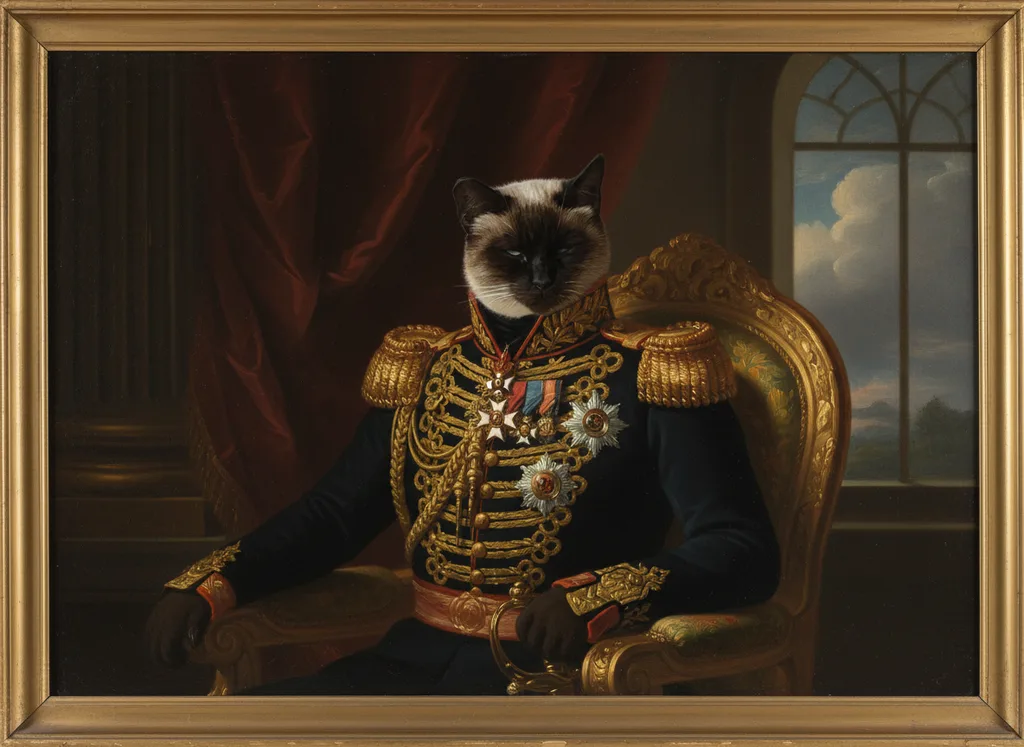
This page goes through the phone camera settings that change a pet portrait photo: Photo and Portrait modes, the Portrait Lighting effects, resolution, filters and styles, Live Photos, and which camera to use. It uses the iPhone and the Google Pixel as examples, because Apple and Google publish their camera instructions. The main pet photo guide covers the rest of the process.
You do not need to learn manual controls. The Cats Protection volunteer who wrote photo tips for the UK cat charity says hardly anyone chooses the manual settings on phones as the default, because the automatic settings adjust well to conditions. The settings below are the few that are worth checking once, before a photo session.
Quick settings table
| Setting | What to choose for a pet portrait photo | Why |
|---|---|---|
| Camera | The back camera | The selfie lens is grainier |
| Mode | Photo, or Portrait when your pet is still | Portrait mode blurs a busy background |
| Portrait Lighting | Natural Light | Other effects change the background or the colour |
| Resolution | The highest your phone offers | More pixels for a large print |
| Filter or Photographic Style | Original or Standard | Keeps the true coat colour |
| Live Photos | On | Lets you pick a different frame later |
| Flash | Off | See the page on lighting |
| Zoom | The lens buttons, such as 1x or 2x | Finger zoom loses crispness |
The sections below explain each one.
Use the back camera
An American Kennel Club (AKC) article on dog photos says not to use the selfie side of your camera, because the lens is much grainier. Apple's iPhone guide says the Lens Correction setting adjusts photos taken with the front camera or the Ultra Wide camera for more natural-looking results. The back camera also lets you see the screen while you take the photo.
Photo mode and Portrait mode
Apple's guide says Portrait mode applies a depth-of-field effect that keeps the subject, whether people, pets or objects, sharp while blurring the foreground and background. The AKC article suggests using portrait mode when you can, with the focus on your dog. It names the flooring, the bedding and the background as places the focus should stay away from. Cats Protection also suggests a pet mode or portrait mode where the phone has one.
A blurred background helps a portrait photo when the room behind your pet is busy. It matters less against a plain wall.
Apple gives two useful details:
- The effect can be removed. After you take the portrait, open the photo in the Photos app, tap the edit button, then tap Portrait to turn the effect on or off. The Depth Control slider, in the Camera app or later in the Photos app, changes how strong the blur is.
- Photo mode can capture depth too. Apple says the iPhone captures depth information in Photo mode on supported models, so you can apply the portrait effect later even if you did not use it when you took the photo.
On a Google Pixel, Google's help page says Portrait mode is in the photo mode carousel, the row of modes you swipe through at the bottom of the screen.
Cats Protection suggests portrait mode when a cat is sitting still, and an action mode when it is in a playful mood. For a pet on the move, use Photo mode with burst, as the page on sharp pet photos explains.
Portrait Lighting effects
Apple lists six Portrait Lighting effects:
- Natural Light: sharp focus with a blurred background.
- Studio Light: bright, clean lighting.
- Contour Light: dramatic shadows with highlights and lowlights.
- Stage Light: a spotlight effect against a black background.
- Stage Light Mono: Stage Light in black and white.
- High-Key Light Mono: a greyscale subject on a white background.
For a portrait photo, choose Natural Light. The portrait needs the real coat colours and the real shape of the face, and the Mono effects remove the colour while the Stage effects replace the background. Apple says you can change Portrait Lighting levels later in the Photos app as well.
Resolution: keep every pixel
Resolution is the number of pixels, the tiny squares of colour, that make up a photo. MP means megapixels, or millions of pixels.
The AKC article advises taking photos at the highest possible resolution, which you should be able to change in the phone's settings, and says you want all the pixels you can get. Apple says that on supported iPhones you can change the default resolution of the main camera between 24 MP and 12 MP under Settings, Camera, Formats, Photo Mode. To take 48 MP photos, you turn on Resolution Control, or ProRAW and Resolution Control, in the same Formats menu, depending on the model.
On a Google Pixel, Google's help page lists a Resolution option in the camera settings with a Full HD choice to save storage space. Check that Full HD is off. Google also says Pro models such as the Pixel 8 Pro, 9 Pro and 10 Pro can take 50 MP photos from the Pro tab in the settings.
More pixels make a larger file. The Purrealism portrait studio takes one image file of up to 5 MB, and the page on photo file size and format explains what to do when a high-resolution photo is too large.
Filters and Photographic Styles
Apple's guide says you can change how photos look before you take them, with a filter on iPhone 12 models or earlier, or with a Photographic Style on newer models. Apple says a Photographic Style applies to every photo you take until you change it or close Camera, and that a setting called Preserve Settings can keep the same style every time you open Camera.
A style or filter set months ago may still be on. It changes the colours in every photo, and a warm or cool tint changes the colour of the coat that the portrait will copy. Before a session, open the camera, check Styles or Filter, and choose Original or the standard style.
On a Google Pixel 11 model, Google's help page describes Camera Looks, which change how photos are processed, including a default Look that applies every time you open the Camera app. Check it the same way.
Cats Protection suggests using a photo editing app to make a shot brighter if needed. Keep edits to brightness and straightening. The page on black, white and two-tone coats covers brightness in detail.
Live Photos
Apple says that with Live Photos, the iPhone records what happens 1.5 seconds before and after you take a picture, that Live Photo is on by default, and that you can pick a different key photo later. For a pet, keep it on. If the eyes closed at the exact moment you pressed the shutter, another frame may have them open.
When you share or upload, the still image is what matters. Apple says that to share only the still photo, you tap LIVE in the upper-left corner before sharing, and that a Live Photo sent by Mail arrives as a still image.
Other iPhone settings worth knowing
- Prioritize Faster Shooting. Apple says this setting changes how images are processed so you can capture more photos when you tap the Shutter button quickly, and that it is on by default. Leave it on for pets.
- Lens cleaning hints. Apple says supported iPhones detect a smudged lens and suggest cleaning it. Leave these hints on.
- Grid and Level. These help you keep the phone straight, as the page on camera height and angle explains.
- Flash. Apple says the camera uses the flash automatically when needed. The page on lighting a pet photo explains why to set it to Off for pets.
Lenses and zoom
Apple's iPhone guide says supported models have buttons such as 0.5x, 1x, 2.5x, 3x, 4x, 5x or 8x to zoom in or out quickly. Google says a Pixel picks the lens automatically as you zoom, and that some models let you turn on Manual Lens Selection to choose one yourself. Use these buttons for framing. The AKC article says zooming in with your fingers on the screen loses some of the crispness in your picture, and suggests moving closer or farther away. For a head and chest photo, 1x or 2x from a step or two away is a good start.
Once the settings are right, you rarely need to change them again. Check the style, the resolution and the flash once, then spend the session on your pet.
Questions and answers
Is portrait mode good for pet photos?
Portrait mode is good for pet photos when your pet sits still in good light. Apple says iPhone Portrait mode applies a depth effect that keeps people, pets or objects sharp while blurring the foreground and background. An American Kennel Club article also suggests portrait mode, with the focus on the dog and away from the floor or the bedding behind it.
Can I remove the blur from an iPhone portrait photo later?
The background blur on an iPhone portrait photo can be removed later. Apple's iPhone guide says to open the photo in the Photos app, tap the edit button, then tap Portrait to turn the effect on or off. The Depth Control slider in the Photos app also changes how strong the blur is, so you can keep a softer version.
What resolution should my phone camera use for pet photos?
Use the highest resolution your phone camera offers for a pet portrait photo. An American Kennel Club article advises taking pictures at the highest possible resolution and says you want all the pixels you can get. Apple says supported iPhones can take 12 MP, 24 MP or, with Resolution Control turned on, 48 MP photos with the main camera.
Should I use a filter on a photo for a pet portrait?
A photo for a pet portrait works best with no filter, so the coat and eye colours stay true. Apple's iPhone guide says a filter or Photographic Style can be chosen before a photo is taken, and that a style applies to every photo until you change it or close the Camera app. Choose Original before you start.
Which iPhone Portrait Lighting effect should I use for a pet?
Use Natural Light, the first iPhone Portrait Lighting effect, for a pet portrait photo. Apple's guide describes Natural Light as sharp focus with a blurred background. Stage Light puts the subject against a black background, and Stage Light Mono and High-Key Light Mono turn the photo black and white or grey, which removes the coat colours the portrait needs.
Should I turn off Live Photos for pet photos?
Keep Live Photos on for pet photos, because it gives you more frames to choose from. Apple says a Live Photo records what happens 1.5 seconds before and after you take a picture, and that you can pick a different key photo later. To send only the still image, Apple says to tap LIVE in the corner of the photo before you share it.
Is the front camera good for pet photos?
The front camera is the weaker choice for a pet portrait photo. An American Kennel Club article advises against using the selfie side of the camera, because its lens is much grainier. Apple says its Lens Correction setting adjusts front camera photos for more natural-looking results. Turn the phone around and use the main camera on the back.
What does Prioritize Faster Shooting do on an iPhone?
Prioritize Faster Shooting is an iPhone setting that changes how images are processed so you can take more photos when you tap the Shutter button quickly. Apple says it is on by default and can be turned off under Camera in the Settings app. Leave it on for a pet session, where quick repeated taps catch a moving face.
What does the Full HD setting do on a Pixel camera?
The Full HD setting on a Google Pixel camera lowers the photo resolution to save storage space. Google's Pixel help lists it under Resolution in the camera settings. For a pet portrait photo, check that Full HD is off and the higher setting is chosen, because a portrait printed at 18 × 24 or 24 × 36 inches needs as many pixels as possible.
Should I edit a pet photo before using it for a portrait?
Light editing of a pet photo is fine before you use it for a portrait. Cats Protection, a UK cat charity, suggests using a photo editing app to make a shot brighter if needed. Keep edits small: brighten a dark photo or straighten it, but skip heavy filters, because they change the coat colour that the portrait will copy.
Sources
- Take portraits with your iPhone camera, Apple Support. Accessed September 28, 2026.
- Change advanced camera settings on iPhone, Apple Support. Accessed September 28, 2026.
- Use iPhone camera tools to set up your shot, Apple Support. Accessed September 28, 2026.
- iPhone camera basics, Apple Support. Accessed September 28, 2026.
- Bring your photos to life, Apple Support. Accessed September 28, 2026.
- Take high quality photos on your Pixel phone or tablet, Google Pixel Camera Help. Accessed September 28, 2026.
- Change your Camera app settings, Google Pixel Camera Help. Accessed September 28, 2026.
- Say Cheese! Take the Best Photos of Your Dogs, American Kennel Club. Accessed September 28, 2026.
- Pet photography: How to take amazing photos of your cat, Cats Protection. Accessed September 28, 2026.
- 9 tips for better cat photos from a Cats Protection volunteer, Cats Protection. Accessed September 28, 2026.
Short reads on this topic
Articles from Purrspectives that answer one question each.